计费门户
Page summary:Strapi 账单门户是你可以查看所有 Strapi 订阅、获取 CMS 许可证密钥,以及管理支付方式、账单详情和发票的地方。只有 Growth 订阅可以在门户中管理;Cloud 和 Enterprise 订阅只能查看。
Strapi 计费门户 是你查看和管理 Strapi 订阅账单的地方。对于所有订阅,你可以更新付款方式、编辑账单信息,以及下载发票。你还可以查看符合条件的 CMS 订阅的许可证密钥。
🌐 The Strapi billing portal is where you view and manage billing for your Strapi subscriptions. For all subscriptions, you can update payment methods, edit billing details, and download invoices. You can also view license keys for eligible CMS subscriptions.
虽然你可以在门户中查看所有订阅,但只有 Growth 订阅可以直接在这里管理。Cloud 订阅需要在 Strapi Cloud 仪表板 管理。要更改你的 Enterprise 计划,请 联系销售 。
🌐 While you can view all subscriptions in the portal, only Growth subscriptions can be managed directly there. Cloud subscriptions are managed in the Strapi Cloud dashboard. To make changes to your Enterprise plan, contact sales.
登录
🌐 Sign in
要登录 账单门户 :
🌐 To sign in to the billing portal:
- 请输入你在购买或用于 CLI 认证时使用的电子邮件地址。
- 输入发送到你收件箱的6位数验证码。
订阅
🌐 Subscriptions
订阅 标签显示你所有的 Strapi 订阅。
🌐 The Subscriptions tab displays all your Strapi subscriptions.
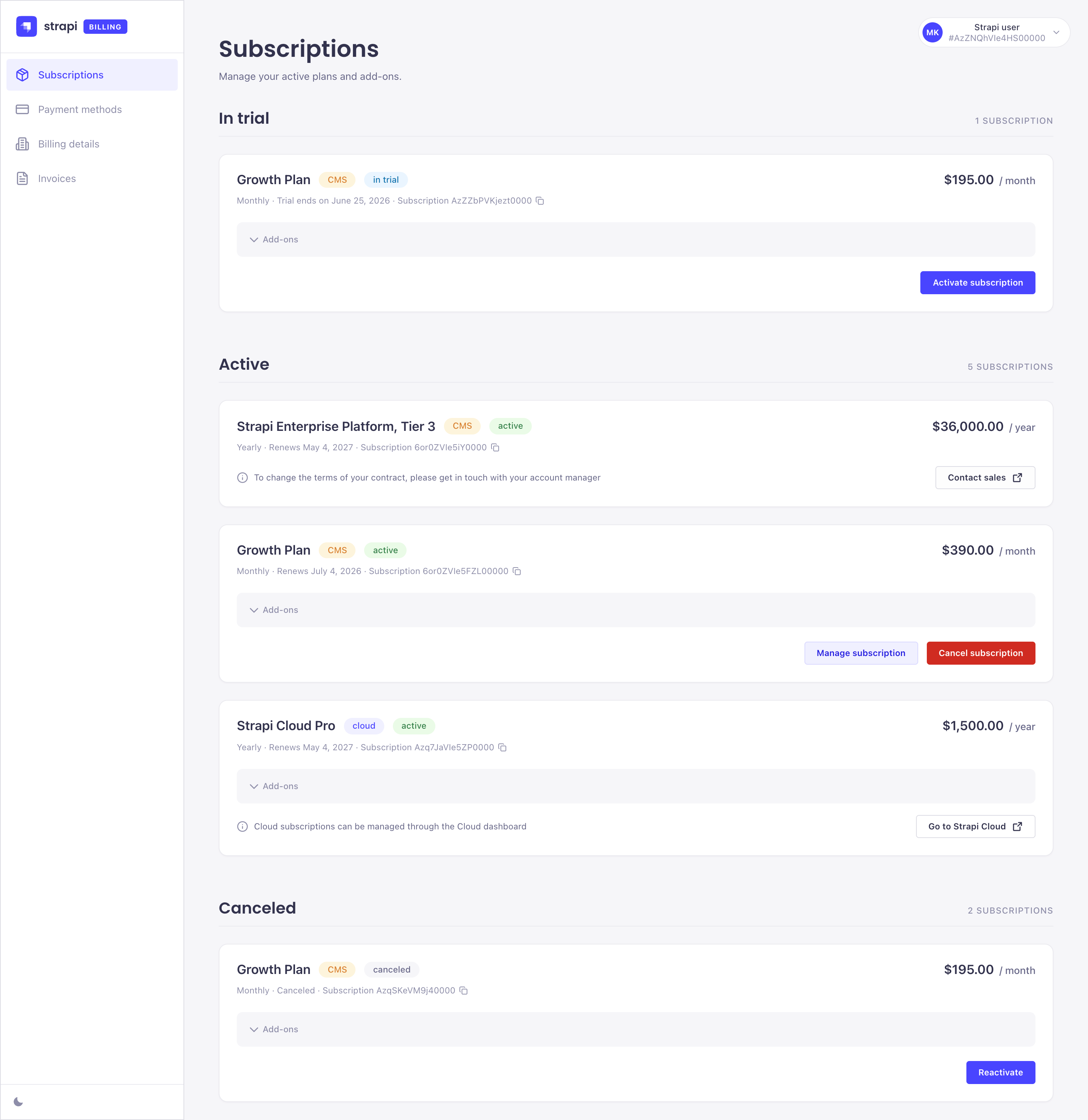

默认情况下,订阅会以卡片形式显示,并按状态分组到以下几个部分:
🌐 By default, subscriptions are displayed as cards and grouped by status into the following sections:
- 试用中:尚未转换为付费的试用订阅。
- 活跃:活跃的订阅。
- 计划取消:订阅将在当前计费周期结束时被取消。
- 已取消:已完全取消的订阅。
每张订阅卡都会显示计划名称、产品系列、状态、账单账户名称、价格、账单周期(月度或年度)、续订或试用结束日期,以及订阅ID。在订阅ID旁,云订阅会显示云项目名称,而增长订阅会显示与许可证关联的CMS项目ID。
🌐 Each subscription card shows the plan name, product family, status, billing account name, price, billing period (monthly or yearly), renewal or trial end date, and subscription ID. Next to the subscription ID, Cloud subscriptions show the Cloud project name and Growth subscriptions show the CMS project ID linked to the license.
你可以用以下控制来改变订阅的显示方式:
🌐 You can change how subscriptions are displayed with the following controls:
- 按账单账户过滤:如果你的邮箱关联了多个账单账户,使用此过滤器只显示所选账户的订阅。清除选择即可再次显示所有账户。
- 分组方式:按 状态、账户、计划 或 无 对订阅进行分组。只有当你的邮箱关联了多个账单账户时,才可以使用 账户 分组选项。
- 卡片 / 列表:在卡片视图(默认)和紧凑列表视图之间切换。
查看和保存 CMS 许可证密钥
🌐 Viewing and saving a CMS license key
查看许可证 操作适用于激活和试用中的成长型及企业订阅。
🌐 The View license action is available for active and in-trial Growth and Enterprise subscriptions.
查看并保存许可证密钥:
🌐 To view and save a license key:
- 点击订阅卡上的查看许可证。
- 在许可证密钥对话框中,使用以下任一选项:
- 点击 复制按钮以复制完整的许可密钥。
- 点击 下载按钮将完整的许可证密钥保存为
license.txt。
- 将许可证添加到你的 Strapi 项目的根目录作为一个
LICENSE.TXT文件,或者将STRAPI_LICENSE环境变量设置为许可证密钥。
把许可证密钥当作凭证。不要把许可证文件或环境变量提交到源代码管理。
🌐 Treat the license key as a credential. Do not commit the license file or environment variable to source control.
激活试用期内的 Growth 订阅
🌐 Activating an in-trial Growth subscription
在激活之前,请确保在支付方式标签中添加付款方式,并为相关账单账户填写完整的账单信息资料。
🌐 Before you activate, make sure to add a payment method in the Payment methods tab and complete your Billing details profile for the relevant billing account.
要激活订阅:
🌐 To activate a subscription:
- 在试用中部分点击激活订阅。
- 在 管理订阅 模态中,设置所需的席位数量,并选择计划是否应包含 SSO 附加组件。
- 点击继续以查看费用摘要。
- 点击 立即激活 以确认。
增长订阅必须至少包含 3 个席位。
🌐 Growth subscriptions must include a minimum of 3 seats.
更改 Growth 订阅的座位和附加项
🌐 Changing seats and add-ons on a Growth subscription
要更新活跃的 Growth 订阅的座位数量或附加功能:
🌐 To update the seat count or add-ons of an active Growth subscription:
- 点击 管理订阅。
- 在管理订阅弹窗中,根据需要调整座位数量和包含的附加组件。
- 点击继续以查看费用摘要。
- 点击 确认 以应用更改。
当你增加座位或启用 SSO 附加组件时,你会立即按比例收费。但是,你的 Strapi CMS 实例会在启动时以及每隔 12 小时检查一次许可证更新,因此新座位可能需要最多 12 小时才能出现在管理员面板中。若要更快地应用更改,请重启你的 Strapi 实例。
🌐 When you add seats or enable the SSO add-on, you are charged a prorated amount immediately. However, your Strapi CMS instance checks for license updates on startup and every 12 hours, so new seats may take up to 12 hours to appear in the admin panel. To apply the change sooner, restart your Strapi instance.
当你删除座位或禁用 SSO 附加组件时,更改将在下次续订时生效。你当前的座位数量和附加组件将在此之前保持有效。
🌐 When you remove seats or disable the SSO add-on, the change takes effect at the next renewal. Your current seat count and add-ons stay active until then.
如果你在同一次更改中增加席位并禁用 SSO,席位增加将立即收费。SSO 的移除仍将延期到下次续订时生效。
🌐 If you add seats and disable SSO in the same change, the seat increase is charged immediately. SSO removal is still deferred to the next renewal.
取消增长订阅
🌐 Canceling a Growth subscription
要取消正在进行的增长订阅:
🌐 To cancel an active Growth subscription:
- 点击 取消订阅。
- 在 取消订阅 对话框中,点击 确认 以安排取消。
取消将在账单周期结束时生效。在更改待处理期间,你可以撤销已安排的取消并重新激活你的订阅。
🌐 Cancellations are effective at the end of the billing period. While the change is pending, you can undo the scheduled cancellation and reactivate your subscription.
即使订阅取消已生效,你也可以重新激活已取消的订阅。要重新激活,请点击订阅卡上的 重新激活 并按照步骤操作。
🌐 You can also reactivate a canceled subscription even after the cancellation has taken effect. To reactivate, click Reactivate on the subscription card and follow the steps.
支付方式
🌐 Payment methods
支付方式 标签让你管理用于订阅的付款卡。
🌐 The Payment methods tab lets you manage the payment cards used for your subscriptions.
如果你的邮箱关联了多个账单账户,请在“按账单账户筛选”下拉菜单中选择一个账户以显示它的付款卡。你添加、编辑或移除的卡只会应用到所选的账单账户。
🌐 If your email is linked to several billing accounts, select an account in the Filter by billing account dropdown to display its payment cards. Cards you add, edit, or remove only apply to the selected billing account.
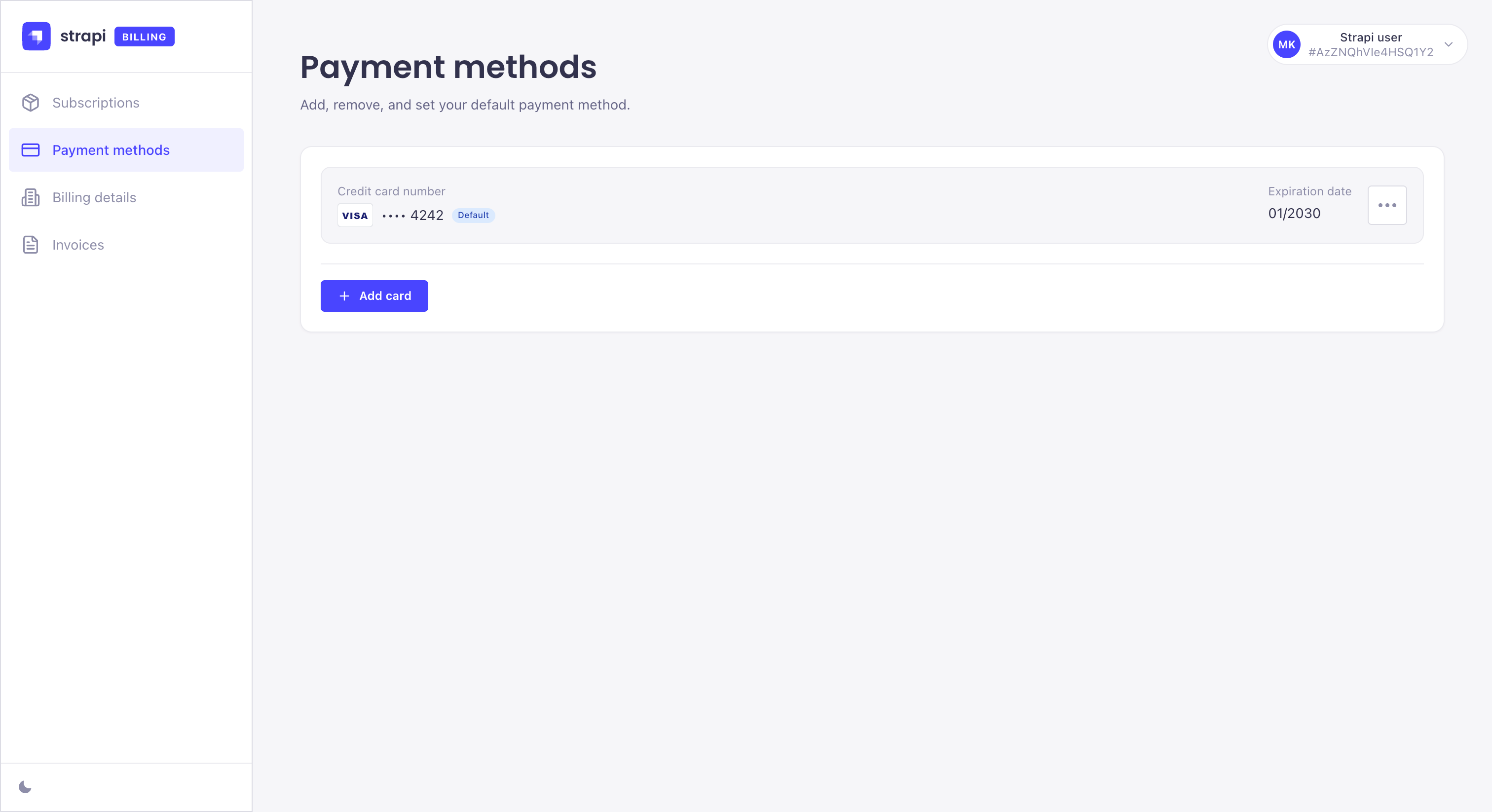
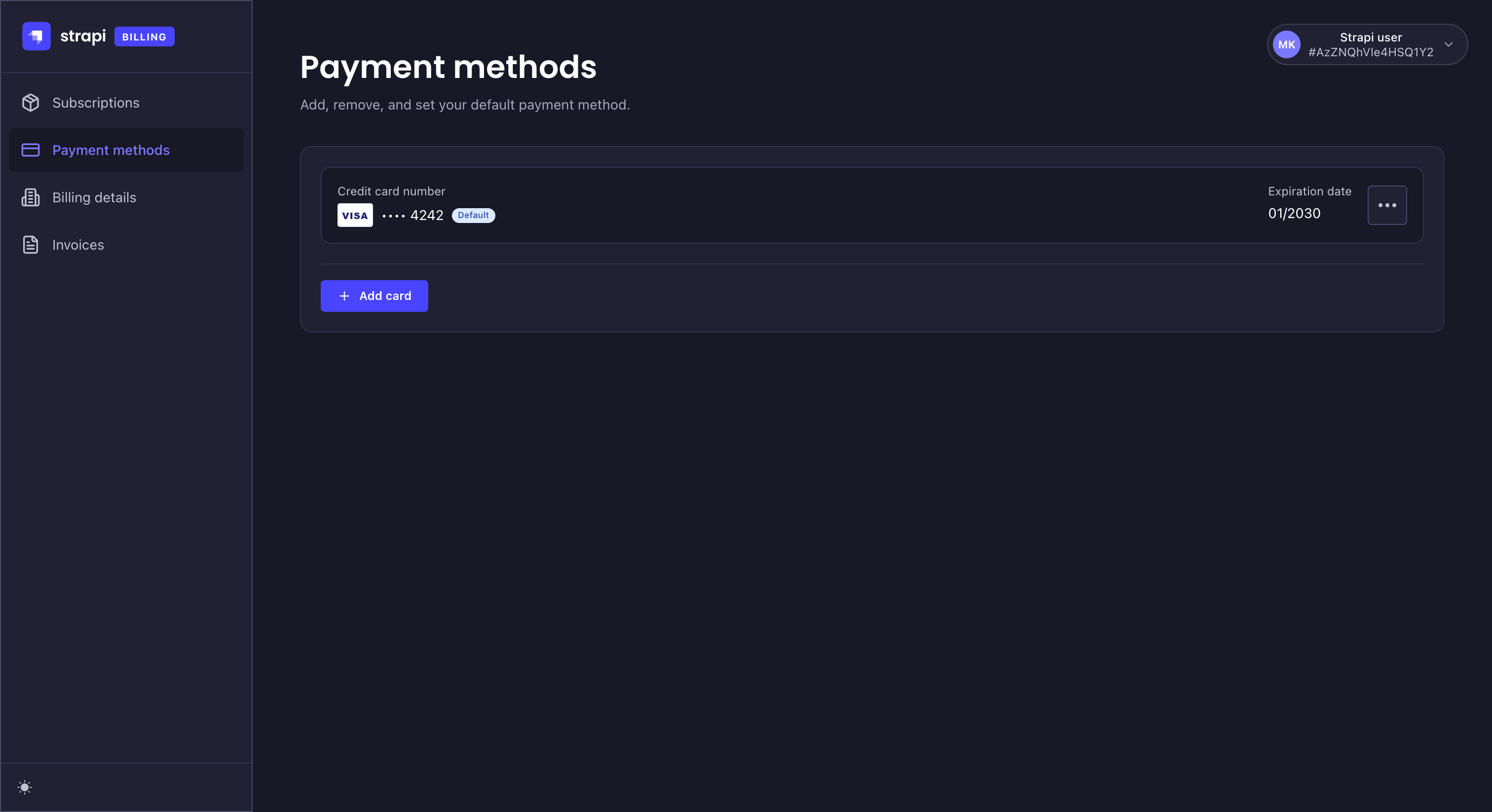
添加新卡
🌐 Adding a new card
要添加新卡:
🌐 To add a new card:
- 点击 添加卡片。
- 在“添加支付方式”对话框中,输入卡号、有效期和 CVV/CVC。
- 可选择,勾选 设为默认付款方式。
- 点击 保存。
默认卡将用于所有订阅相关的事务,包括附加服务和超额费用。
🌐 The default card will be used for all subscription-related transactions, including add-ons and overages.
更新或删除卡片
🌐 Updating or removing a card
要更新现有的支付卡:
🌐 To update an existing payment card:
- 点击你想编辑的付款卡的 图标。
- 执行以下操作之一:
- 点击 设为默认 将此卡设置为默认卡。
- 点击 编辑卡片,更新卡号、有效期和 CVV/CVC,然后点击 保存。
要删除现有的支付卡:
🌐 To remove an existing payment card:
- 点击你想删除的付款卡的 图标。
- 点击 移除卡片。
- 在移除支付方式对话框中点击确认。
你无法移除默认卡。在附加了次要卡的订阅(例如云订阅)的情况下,移除该卡将自动取消附加到该卡的所有订阅。
🌐 You cannot remove your default card. In cases where a secondary card is attached to a subscription (e.g. for Cloud subscriptions), removing the card will automatically cancel all the subscriptions attached to that card.
账单详情
🌐 Billing details
账单详情选项卡允许你查看和编辑账户账单信息。必须填写此部分的必填字段以激活试用订阅。
🌐 The Billing details tab lets you view and edit account billing information. Required fields in this section must be completed to activate a trial subscription.
如果你的邮箱关联了多个账单账号,请在“按账单账号筛选”下拉菜单中选择一个账号以显示其账单详情。你保存的更改只会应用到所选账号。
🌐 If your email is linked to several billing accounts, select an account in the Filter by billing account dropdown to display its billing details. Changes you save only apply to the selected account.
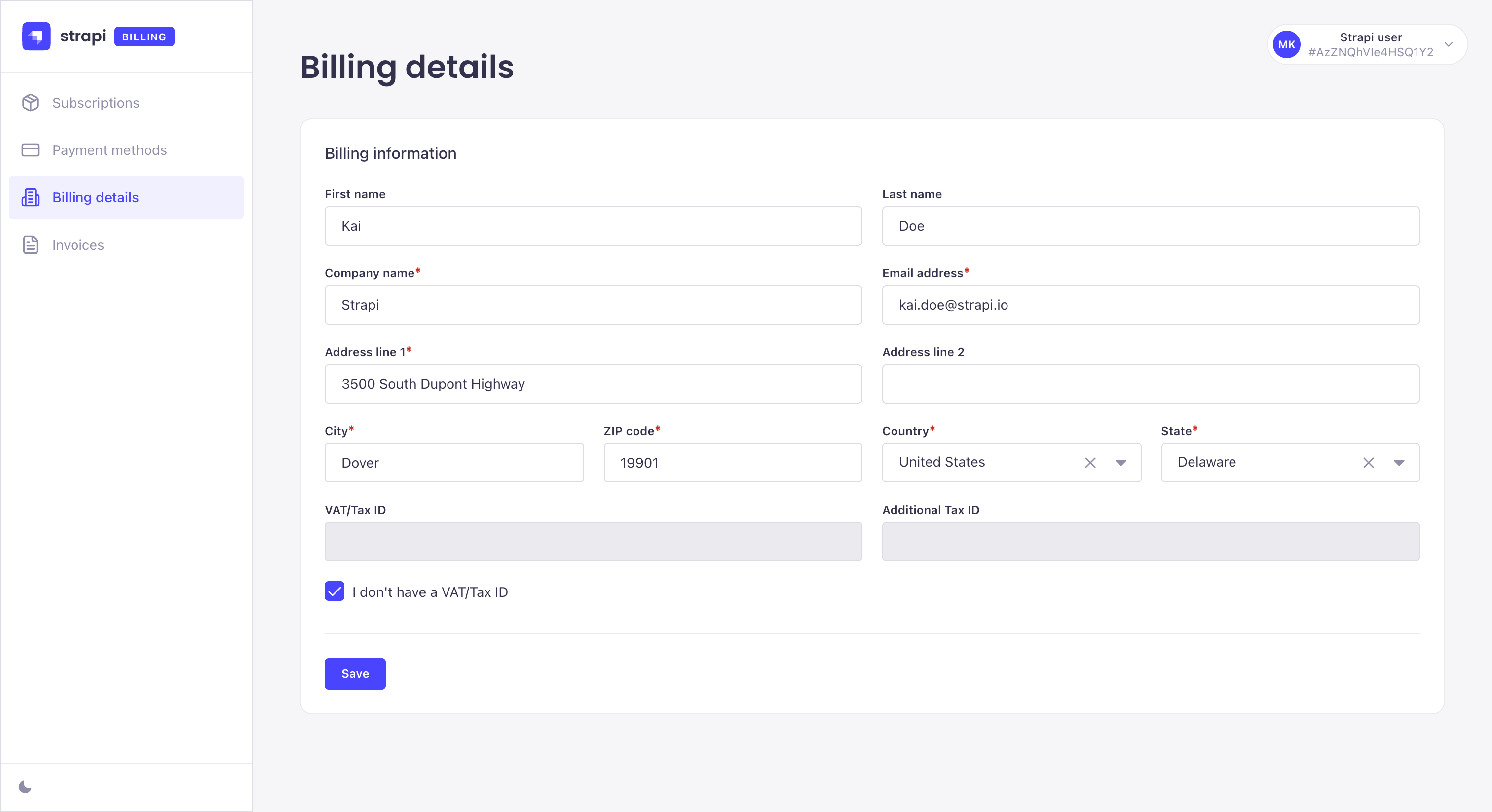
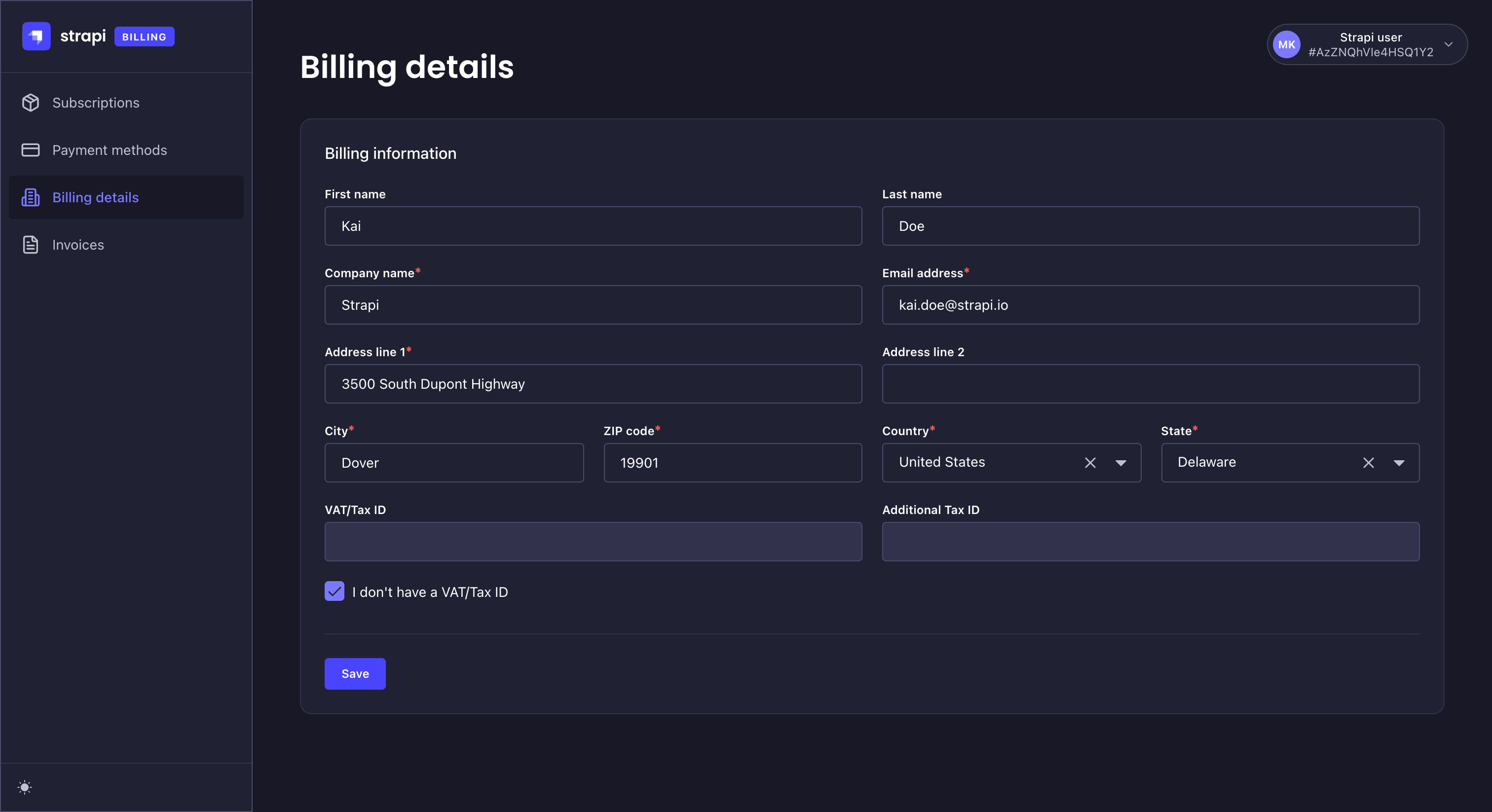
根据你的账单地址,可能会在你的发票上加收税费:
🌐 Taxes may be added to your invoice based on your billing address:
- 在欧盟、英国、加拿大和印度,提供有效的增值税号可以免除增值税。如果未提供有效的增值税号,增值税将被添加到你的发票中。
- 在美国,适用的销售税是根据你的州和地址计算的。
发票
🌐 Invoices
发票 标签显示你所有 Strapi 订阅的发票及其状态。
🌐 The Invoices tab displays all invoices for your Strapi subscriptions and their status.
如果你的邮箱关联了多个账单账户,默认会显示所有账户的发票。你可以:
🌐 If your email is linked to several billing accounts, invoices from all accounts are displayed by default. You can:
- 在“按结算账户筛选”下拉菜单中选择一个或多个账户以缩小列表范围。
- 使用 按组分组 控件按 账户 对发票进行分组,或者选择 无(默认)将它们显示为单个列表。
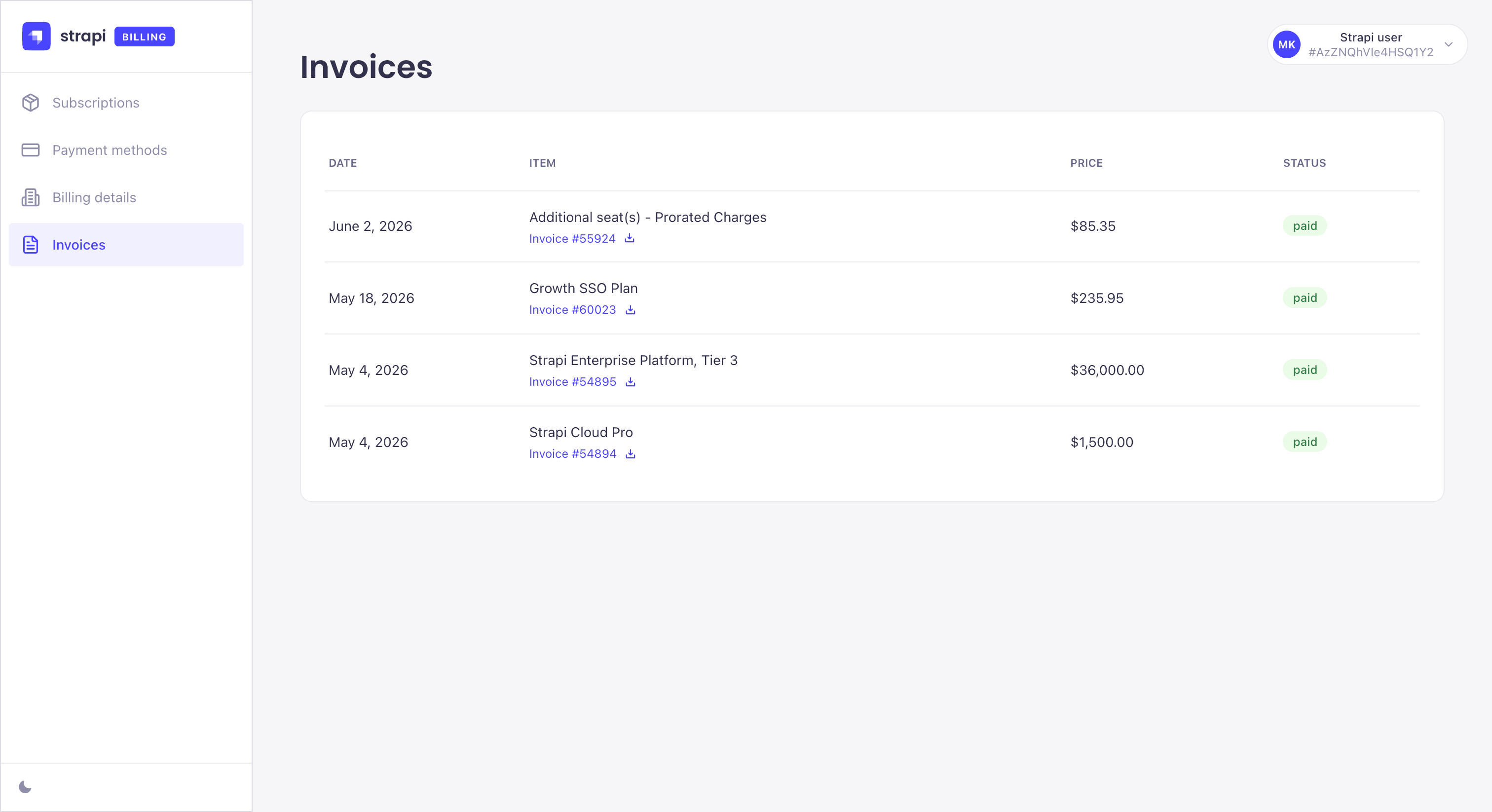
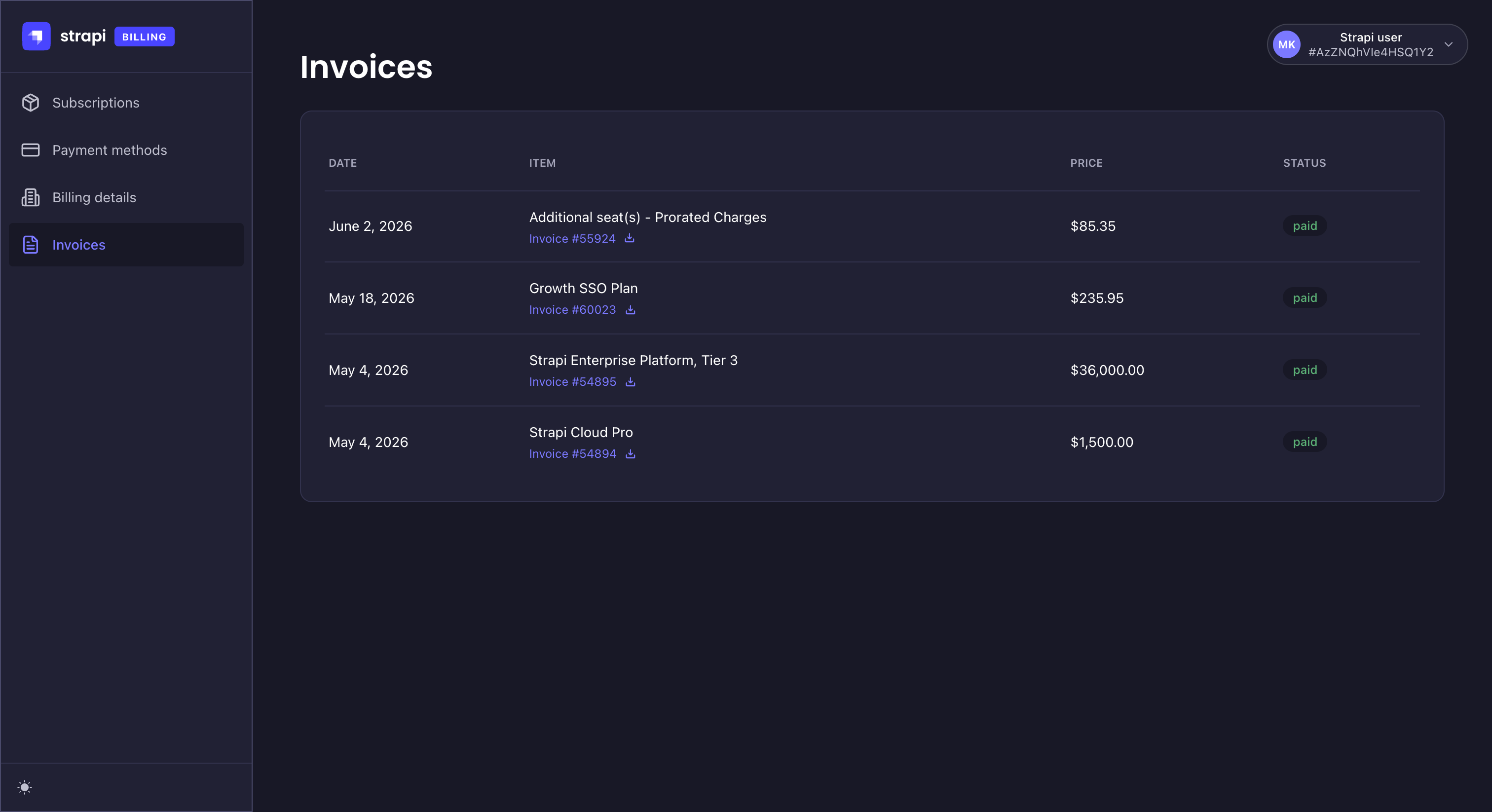
发票可以具有以下任何状态:
🌐 Invoices can have any of the following statuses:
- 已付款:款项已收到,发票可用,无需其他操作。
- 待处理:发票尚未完成或验证,或付款未成功,需要修复。
- 未付款:支付失败,且不会自动重试。
- 作废:发票已被取消。
点击  图标下载发票。
🌐 Click the icon to download an invoice.