内容管理器 API
🌐 Content Manager APIs
Page summary:内容管理器 API 通过
addEditViewSidePanel、addDocumentAction、addDocumentHeaderAction、addBulkAction或addRichTextBlocks向内容管理器添加面板、操作和自定义富文本块。每个 API 都接受带有类型化上下文的组件函数,从而实现对文档感知 UI 注入的精确控制。
内容管理器 API 是 管理面板 API 的一部分。它们是 Strapi 插件向 内容管理器 添加内容或选项的一种方式。内容管理器 API 允许你通过添加来自你自己插件的功能来扩展内容管理器,就像你可以通过 注入区域 所做的一样。
🌐 Content Manager APIs are part of the Admin Panel API. They are a way for Strapi plugins to add content or options to the Content Manager. The Content Manager APIs allow you to extend the Content Manager by adding functionality from your own plugin, just like you can do it with Injection zones.
在深入了解本页的概念之前,请确保你已经:
🌐 Before diving deeper into the concepts on this page, please ensure you have:
- 创建了一个 Strapi 插件,
- 已阅读并理解了 管理面板 API 的基础知识
一般信息
🌐 General information
Strapi 5 提供了 4 个内容管理器 API,所有 API 都可以通过 app.getPlugin('content-manager').apis 访问。所有内容管理器 API 具有相同的 API 结构,并且必须使用组件。
🌐 Strapi 5 provides 4 Content Manager APIs, all accessible through app.getPlugin('content-manager').apis.
All the Content Manager APIs share the same API shape and must use components.
注入区与内容管理器 API
🌐 Injection zones vs. Content Manager APIs
要向内容管理器添加面板、操作或按钮,内容管理器 API(addDocumentAction、addEditViewSidePanel 等)通常比注入区更稳健且类型更明确。当需要将组件插入内容管理器 API 未覆盖的特定 UI 区域时,请使用注入区。
🌐 For adding panels, actions, or buttons to the Content Manager, the Content Manager APIs (addDocumentAction, addEditViewSidePanel, etc.) are often more robust and better typed than injection zones. Use injection zones when you need to insert components into specific UI areas not covered by the Content Manager APIs.
内容管理器 API 和注入区都是用于自定义管理面板的扩展点,但它们解决的是不同的需求:
🌐 Content Manager APIs and injection zones are both extension points to customize the admin panel, but they solve different needs:
| 需求 | 推荐的 API | 原因 |
|---|---|---|
| 在编辑视图侧边区域添加自定义面板 | 内容管理器 API (addEditViewSidePanel) | 最适合在编辑时保持可见的上下文信息或控制。 |
| 在文档操作菜单中添加操作 | 内容管理器 API (addDocumentAction) | 最适合在编辑视图操作菜单中执行文档级操作。 |
| 在编辑视图标题中添加操作 | 内容管理器 API (addDocumentHeaderAction) | 最适合在文档标题旁进行快速、显眼的操作。 |
| 为列表视图中选定的条目添加操作 | 内容管理器 API (addBulkAction) | 最适合用于同时应用于多个条目的工作流程。 |
| 在插件视图的预定义区域添加 UI(本地化视觉定制) | 注入区域 API (injectComponent) | 当你针对插件公开的特定区域时效果最佳。 |
有关实现细节和最新的 API 签名,请参阅 Strapi 代码库中的 content-manager 文件。
API 形状
🌐 API shape
所有内容管理器 API 的工作方式相同:要使用它们,请在插件的 bootstrap() 函数上调用它们,有两种可能的方式:
🌐 All Content Manager APIs works in the same way: to use them, call them on your plugin's bootstrap() function, in 2 possible ways:
在使用 TypeScript 时,app.getPlugin() 返回的 apis 属性被类型化为 unknown。在调用 API 之前将其转换为 ContentManagerPlugin['config']['apis']。
🌐 When using TypeScript, the apis property returned by app.getPlugin() is typed as unknown. Cast it to ContentManagerPlugin['config']['apis'] before calling the APIs.
-
传递一个包含你想添加内容的数组。例如,以下代码会将 ReleasesPanel 添加到当前 EditViewSidePanels 的末尾:
- JavaScript
- TypeScript
const apis = app.getPlugin('content-manager').apis;

apis.addEditViewSidePanel([ReleasesPanel]);
import type { ContentManagerPlugin } from '@strapi/content-manager/strapi-admin';
const apis =
app.getPlugin('content-manager').apis as ContentManagerPlugin['config']['apis'];
apis.addEditViewSidePanel([ReleasesPanel]); -
传递一个接收当前元素并返回新元素的函数。这很有用,例如,如果你想在列表中的特定位置添加某些内容,就像下面的代码一样:
- JavaScript
- TypeScript
const apis = app.getPlugin('content-manager').apis;

apis.addEditViewSidePanel((panels) => [SuperImportantPanel, ...panels]);
const apis =
app.getPlugin('content-manager').apis as ContentManagerPlugin['config']['apis'];
apis.addEditViewSidePanel((panels) => [SuperImportantPanel, ...panels]);
组件
🌐 Components
你需要将组件传递给 API 才能将内容添加到内容管理器。
🌐 You need to pass components to the API in order to add things to the Content Manager.
组件是接收一些属性并返回具有某种形状对象的函数(取决于函数本身)。每个组件返回的对象根据你使用的函数不同而不同,但它们接收的属性相似,这取决于你使用的是 ListView 还是 EditView API。
🌐 Components are functions that receive some properties and return an object with some shape (depending on the function). Each component's return object is different based on the function you're using, but they receive similar properties, depending on whether you use a ListView or EditView API.
属性包括有关你正在查看或编辑的文档的重要信息。
🌐 Properties include important information about the document(s) you are viewing or editing.
ListViewContext
interface ListViewContext {
  /**
   * Will be either 'single-types' | 'collection-types'
   */
  collectionType: string;
  /**
   * The current selected documents in the table
   */
  documents: Document[];
  /**
   * The current content-type's model.
   */
  model: string;
}
EditViewContext
interface EditViewContext {
  /**
   * This will only be null if the content-type
   * does not have draft & publish enabled.
   */
  activeTab: 'draft' | 'published' | null;
  /**
   * Will be either 'single-types' | 'collection-types'
   */
  collectionType: string;
  /**
   * Will be undefined if someone is creating an entry.
   */
  document?: Document;
  /**
   * Will be undefined if someone is creating an entry.
   */
  documentId?: string;
  /**
   * Will be undefined if someone is creating an entry.
   */
  meta?: DocumentMetadata;
  /**
   * The current content-type's model.
   */
  model: string;
}
有关类型和 API 的更多信息可以在 Strapi 的代码库中的 `/admin/src/content-manager.ts` 文件 中找到。
🌐 More information about types and APIs can be found in Strapi's codebase, in the `/admin/src/content-manager.ts` file.
示例:
向侧边栏添加面板可以按如下方式进行:
🌐 Adding a panel to the sidebar can be done as follows:
- JavaScript
- TypeScript
const Panel = ({
  activeTab,
  collectionType,
  document,
  documentId,
  meta,
  model
}) => {
  return {
    title: 'My Panel',
    content: <p>I'm on {activeTab}</p>
  }
}
import type { PanelComponent, PanelComponentProps } from '@strapi/content-manager/strapi-admin';

const Panel: PanelComponent = ({
  activeTab,
  collectionType,
  document,
  documentId,
  meta,
  model
}: PanelComponentProps) => {
  return {
    title: 'My Panel',
    content: <p>I'm on {activeTab}</p>
  }
}
可用的 API
🌐 Available APIs
addEditViewSidePanel
使用此功能可将新面板添加到“编辑”视图侧边栏,就像以下示例中将某些内容添加到“发布”面板一样:
🌐 Use this to add new panels to the Edit view sidebar, just like in the following example where something is added to the Releases panel:
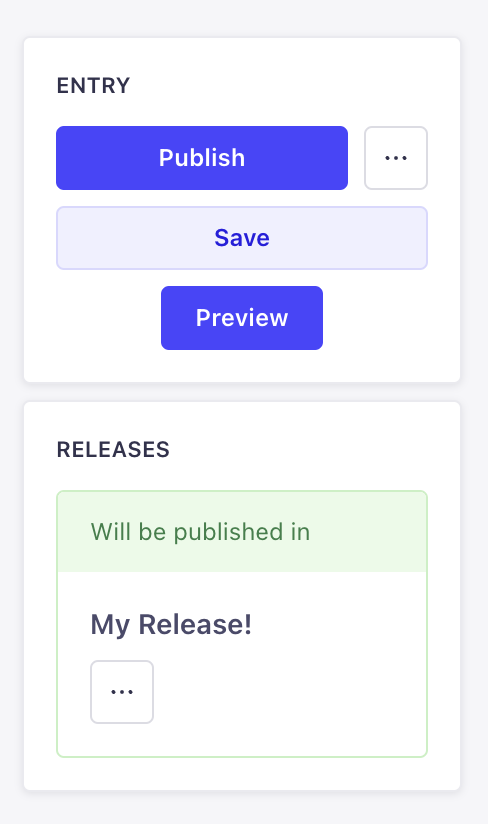
addEditViewSidePanel(panels: DescriptionReducer<PanelComponent> | PanelComponent[])
PanelComponent
一个 PanelComponent 接收在 EditViewContext 中列出的属性,并返回具有以下结构的对象:
🌐 A PanelComponent receives the properties listed in EditViewContext and returns an object with the following shape:
type PanelComponent = (props: PanelComponentProps) => {
  title: string;
  content: React.ReactNode;
};
PanelComponentProps 扩展了 EditViewContext。
addDocumentAction
使用此 API 可向内容管理器的编辑视图或列表视图添加更多操作。共有3个可用位置:
🌐 Use this API to add more actions to the Edit view or the List View of the Content Manager. There are 3 positions available:
-
编辑视图的
header: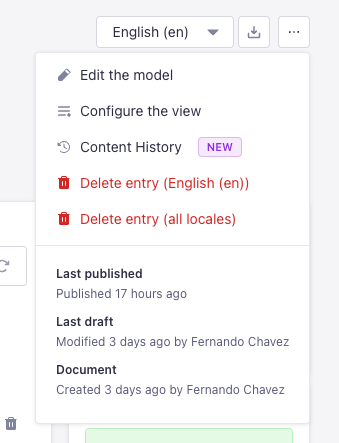
-
编辑视图的
panel: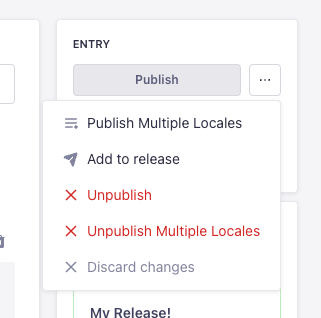
-
列表视图的
table-row: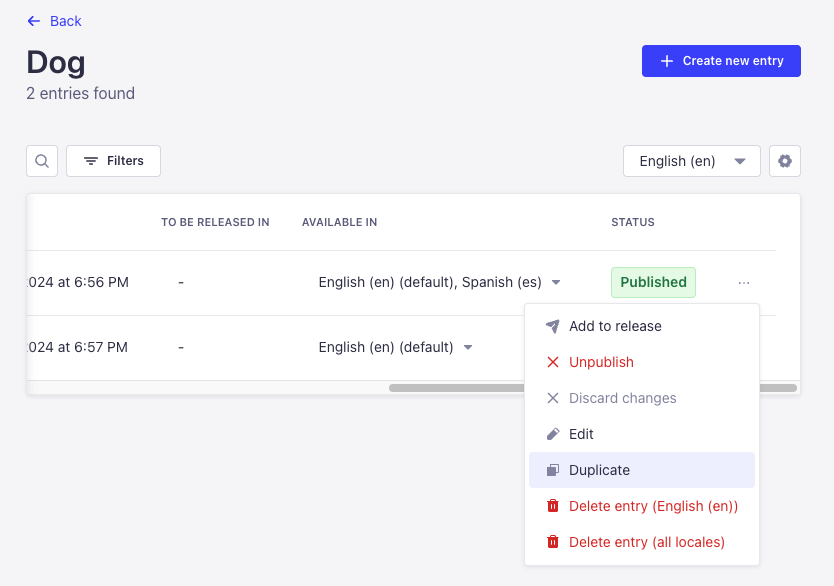
addDocumentAction(actions: DescriptionReducer<DocumentActionComponent> | DocumentActionComponent[])
DocumentActionDescription
API 的接口和属性如下所示:
🌐 The interface and properties of the API look like the following:
interface DocumentActionDescription {
    label: string;
    onClick?: (event: React.SyntheticEvent) => Promise<boolean | void> | boolean | void;
    icon?: React.ReactNode;
    /**
     * @default false
     */
    disabled?: boolean;
    /**
     * @default 'panel'
     * @description Where the action should be rendered.
     */
    position?: DocumentActionPosition | DocumentActionPosition[];
    dialog?: DialogOptions | NotificationOptions | ModalOptions;
    /**
     * @default 'secondary'
     */
    variant?: ButtonProps['variant'];
    loading?: ButtonProps['loading'];
}

type DocumentActionPosition = 'panel' | 'header' | 'table-row' | 'preview' | 'relation-modal';

interface DialogOptions {
    type: 'dialog';
    title: string;
    content?: React.ReactNode;
    variant?: ButtonProps['variant'];
    onConfirm?: () => void | Promise<void>;
    onCancel?: () => void | Promise<void>;
}
interface NotificationOptions {
    type: 'notification';
    title: string;
    link?: {
        label: string;
        url: string;
        target?: string;
    };
    content?: string;
    onClose?: () => void;
    status?: NotificationConfig['type'];
    timeout?: number;
}
interface ModalOptions {
    type: 'modal';
    title: string;
    content: React.ComponentType<{
        onClose: () => void;
    }> | React.ReactNode;
    footer?: React.ComponentType<{
        onClose: () => void;
    }> | React.ReactNode;
    onClose?: () => void;
}
addDocumentHeaderAction
使用此 API 向内容管理器的编辑视图的标题添加更多操作:
🌐 Use this API to add more actions to the header of the Edit view of the Content Manager:

addDocumentHeaderAction(actions: DescriptionReducer<HeaderActionComponent> | HeaderActionComponent[])
HeaderActionDescription
API 的接口和属性如下所示:
🌐 The interface and properties of the API look like the following:
interface HeaderActionDescription {
  disabled?: boolean;
  label: string;
  icon?: React.ReactNode;
  type?: 'icon' | 'default';
  onClick?: (event: React.SyntheticEvent) => Promise<boolean | void> | boolean | void;
  dialog?: DialogOptions;
  options?: Array<{
    disabled?: boolean;
    label: string;
    startIcon?: React.ReactNode;
    textValue?: string;
    value: string;
  }>;
  onSelect?: (value: string) => void;
  value?: string;
}

interface DialogOptions {
  type: 'dialog';
  title: string;
  content?: React.ReactNode;
  footer?: React.ReactNode;
}
addBulkAction
使用此 API 添加按钮,当在内容管理器的列表视图中选择条目时显示,就像“添加到发布”按钮一样:
🌐 Use this API to add buttons that show up when entries are selected on the List View of the Content Manager, just like the "Add to Release" button for instance:

addBulkAction(actions: DescriptionReducer<BulkActionComponent> | BulkActionComponent[])
BulkActionDescription
API 的接口和属性如下所示:
🌐 The interface and properties of the API look like the following:
interface BulkActionDescription {
  dialog?: DialogOptions | NotificationOptions | ModalOptions;
  disabled?: boolean;
  icon?: React.ReactNode;
  label: string;
  onClick?: (event: React.SyntheticEvent) => void;
  /**
   * @default 'default'
   */
  type?: 'icon' | 'default';
  /**
   * @default 'secondary'
   */
  variant?: ButtonProps['variant'];
}
addRichTextBlocks
使用此 API 在 Blocks 富文本字段中注册自定义块类型。自定义块将与内置块一起出现在工具栏下拉菜单中。
🌐 Use this API to register custom block types in the Blocks rich text field. Custom blocks appear in the toolbar dropdown alongside built-in ones.
addRichTextBlocks 必须在 register() 生命周期函数中调用,而不是 bootstrap()。编辑器在 register 期间初始化其 Slate 实例,因此在那时块必须是可用的。
addRichTextBlocks(blocks: RichTextBlocksStore | ((currentBlocks: RichTextBlocksStore) => RichTextBlocksStore))
该 API 接受 2 种调用签名:
🌐 The API accepts 2 call signatures:
-
传递一个对象:提供的区块将被合并到现有的区块存储中。
- JavaScript
- TypeScript
src/admin/app.jsexport default {
register(app) {
app.getPlugin('content-manager').apis.addRichTextBlocks({
callout: {
renderElement: (props) => <Callout {...props.attributes}>{props.children}</Callout>,
icon: Information,
label: { id: 'my-plugin.blocks.callout', defaultMessage: 'Callout' },
matchNode: (node) => node.type === 'callout',
isInBlocksSelector: true,
handleConvert(editor) { /* use Slate Transforms to set node type */ },
snippets: [':::callout'],
},
});
},
};src/admin/app.tsimport type { ContentManagerPlugin } from '@strapi/content-manager/strapi-admin';
export default {
register(app) {
const apis =
app.getPlugin('content-manager').apis as ContentManagerPlugin['config']['apis'];
apis.addRichTextBlocks({
callout: {
renderElement: (props) => <Callout {...props.attributes}>{props.children}</Callout>,
icon: Information,
label: { id: 'my-plugin.blocks.callout', defaultMessage: 'Callout' },
matchNode: (node) => node.type === 'callout',
isInBlocksSelector: true,
handleConvert(editor) { /* use Slate Transforms to set node type */ },
snippets: [':::callout'],
},
});
},
}; -
传递一个函数:该函数接收当前的区块存储,并必须返回更新后的存储。使用此形式来移除或替换内置区块。
- JavaScript
- TypeScript
src/admin/app.jsexport default {
register(app) {
app.getPlugin('content-manager').apis.addRichTextBlocks((currentBlocks) => {
// Remove the built-in code block
const { code: _removed, ...rest } = currentBlocks;
return rest;
});
},
};src/admin/app.tsimport type {
ContentManagerPlugin,
RichTextBlocksStore,
} from '@strapi/content-manager/strapi-admin';
export default {
register(app) {
const apis =
app.getPlugin('content-manager').apis as ContentManagerPlugin['config']['apis'];
apis.addRichTextBlocks((currentBlocks: RichTextBlocksStore) => {
const { code: _removed, ...rest } = currentBlocks;
return rest;
});
},
};
块定义
🌐 Block definition
blocks 对象中的每个条目都是一个具有以下属性的区块定义:
🌐 Each entry in the blocks object is a block definition with the following properties:
| 属性 | 必需 | 类型 | 描述 |
|---|---|---|---|
renderElement | 是 | React.FC | React 渲染函数。在根元素上展开 props.attributes 并渲染 props.children。 |
matchNode | 是 | (node: Node) => boolean | 如果给定的 Slate 节点属于此块类型,则返回 true。 |
isInBlocksSelector | 否 | boolean | 设置为 true 以在工具栏下拉菜单中显示该区块。默认值为 false。 |
icon | 否 | React.ComponentType | 工具栏下拉菜单中显示的图标组件。当 isInBlocksSelector 为 true 时必填。 |
label | 否 | { id: string, defaultMessage: string } | 工具栏下拉菜单中显示 MessageDescriptor。当 isInBlocksSelector 为 true 时为必填项。 |
handleConvert | 否 | (editor: Editor) => void | (() => React.JSX.Element) | 当用户从下拉菜单中选择此块时调用。使用 Slate 的 Transforms 设置节点类型。可以返回一个 React 元素工厂来渲染模态窗口。 |
handleEnterKey | 否 | (editor: Editor) => void | 在此块内自定义回车键行为。 |
handleBackspaceKey | 否 | (editor: Editor, event: React.KeyboardEvent<HTMLElement>) => void | 自定义退格键行为。 |
handleTab | 否 | (editor: Editor) => void | 自定义 Tab 键行为(例如,缩进)。 |
handleShiftTab | 否 | (editor: Editor) => void | 自定义 Shift+Tab 键行为。 |
snippets | 否 | string[] | 输入这些字符串之一后跟空格会触发转换为此块类型。 |
dragHandleTopMargin | 否 | string | 调整拖动重新排序握柄图标的垂直位置。 |
plugin | 否 | (editor: Editor) => Editor | A Slate plugin 在编辑器实例创建时注册。用于自定义归一化器或 Slate 级别的行为。 |
isDraggable | 否 | (element: Element) => boolean | 返回给定元素是否可拖动的函数。默认为 () => true。 |
内置的区块键有:paragraph、heading-one、heading-two、heading-three、heading-four、heading-five、heading-six、list-ordered、list-unordered、image、quote、code、link、list-item。
🌐 The built-in block keys are: paragraph, heading-one, heading-two, heading-three, heading-four, heading-five, heading-six, list-ordered, list-unordered, image, quote, code, link, list-item.
按键处理示例
每个按键处理程序都会接收 Slate 的 editor 实例。使用 Slate 的 Transforms API 来修改文档:
🌐 Key handlers each receive the Slate editor instance. Use Slate's Transforms API to modify the document:
callout: {
  // ...
  handleEnterKey(editor) {
    // Exit the block on Enter and insert a new paragraph below
    Transforms.insertNodes(editor, { type: 'paragraph', children: [{ text: '' }] });
  },
  handleBackspaceKey(editor, event) {
    // Convert back to paragraph when backspacing in an empty callout
    Transforms.setNodes(editor, { type: 'paragraph' });
  },
  handleTab(editor) {
    // Increase indentation level on Tab
    Transforms.setNodes(editor, { indent: (editor.selection ? 1 : 0) });
  },
  handleShiftTab(editor) {
    // Decrease indentation level on Shift+Tab
    Transforms.setNodes(editor, { indent: 0 });
  },
},
有关类型的更多信息可以在 Strapi's codebase, in the BlocksEditor.tsx file中找到。