云项目协作
🌐 Cloud project collaboration
Page summary:项目所有者通过“分享”按钮邀请维护者,管理待处理的邀请,并撤销访问权限。
项目由用户通过他们的 Strapi Cloud 账户创建。Strapi Cloud 用户可以将他们的项目分享给任何其他人,因此这些新用户可以访问项目仪表板并在该项目上进行协作,而项目拥有者无需分享他们的凭据。
🌐 Projects are created by a user via their Strapi Cloud account. Strapi Cloud users can share their projects to anyone else, so these new users can have access to the project dashboard and collaborate on that project, without the project owner to ever have to share their credentials.
被邀请协作项目的用户,称为维护者,不具有与项目所有者相同的权限。与项目所有者相反,维护者:
🌐 Users invited to collaborate on a project, called maintainers, do not have the same permissions as the project owner. Contrary to the project owner, maintainers:
- 不能自己将项目分享给他人
- 无法从项目设置中删除项目
- 无法访问项目设置的计费部分
共享项目
🌐 Sharing a project
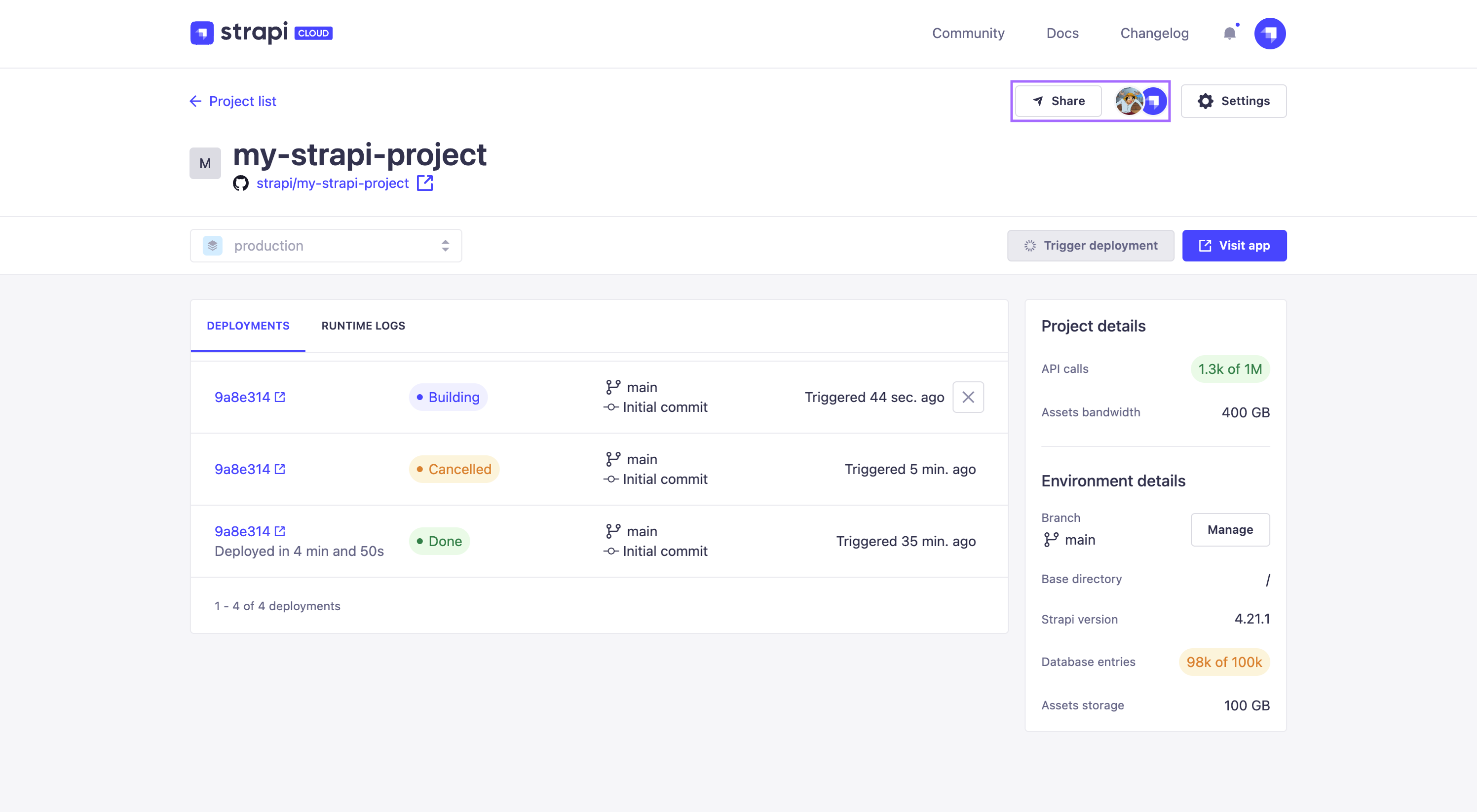
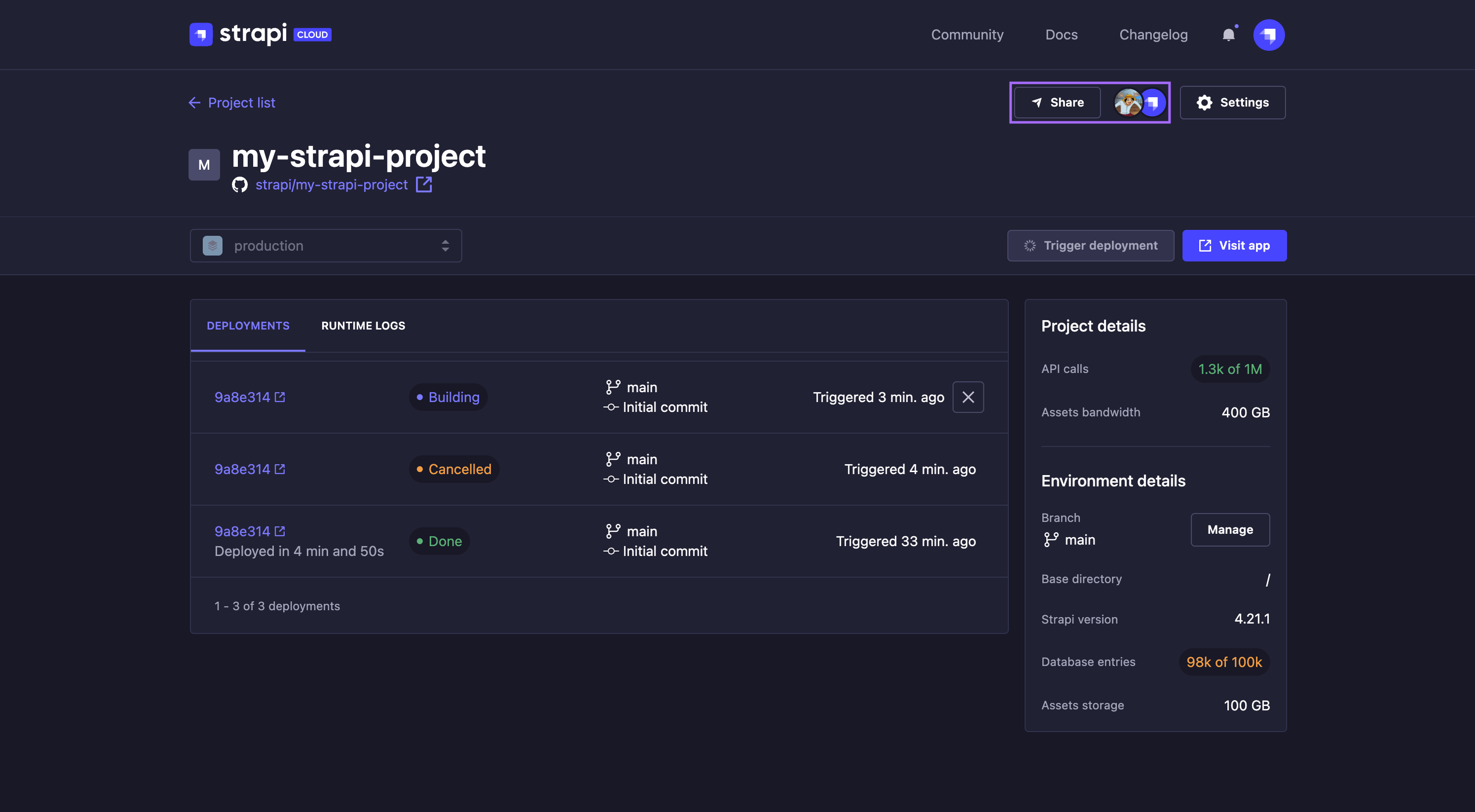
邀请新的维护者参与项目合作:
🌐 To invite a new maintainer to collaborate on a project:
- 在项目页面上,点击你选择的项目即可跳转到其仪表板。
- 点击位于仪表板页眉的分享按钮。
- 在 共享 [项目名称] 对话框中,在文本框中输入要邀请的人的电子邮件地址。应出现一个下拉菜单,显示“邀请 [电子邮件地址]”。
- 点击下拉菜单:电子邮件地址应显示在文本框正下方的紫色框中。
- (可选) 重复步骤3和4以邀请更多人。电子邮件地址只能逐一输入,但邀请可以同时发送给多个电子邮件地址。
- 点击 发送 按钮。
新维护者将收到一封电子邮件,其中包含一个链接,点击该链接即可加入项目。一旦项目被共享,代表维护者的头像将显示在项目仪表板的标题栏中,位于 共享 按钮旁边,以查看有多少维护者在该项目上协作以及他们是谁。
🌐 New maintainers will be sent an email containing a link to click on to join the project. Once a project is shared, avatars representing the maintainers will be displayed in the project dashboard's header, next to the Share button, to see how many maintainers collaborate on that project and who they are.
头像使用 GitHub、Google 或 GitLab 的个人资料图片,但对于待审核用户,只有在维护者账户激活之前显示首字母。你可以将鼠标悬停在头像上以显示维护者的全名。
🌐 Avatars use GitHub, Google or GitLab profile pictures, but for pending users only initials will be displayed until the activation of the maintainer account. You can hover over an avatar to display the full name of the maintainer.
管理维护者
🌐 Managing maintainers
在通过点击项目仪表板的共享按钮可访问的共享 [项目名称] 对话框中,项目所有者可以查看已被邀请参与项目协作的维护者完整列表。在那里,可以查看每个维护者的当前状态并对其进行管理。
🌐 From the Share [project name] dialog accessible by clicking on the Share button of a project dashboard, projects owners can view the full list of maintainers who have been invited to collaborate on the project. From there, it is possible to see the current status of each maintainer and to manage them.
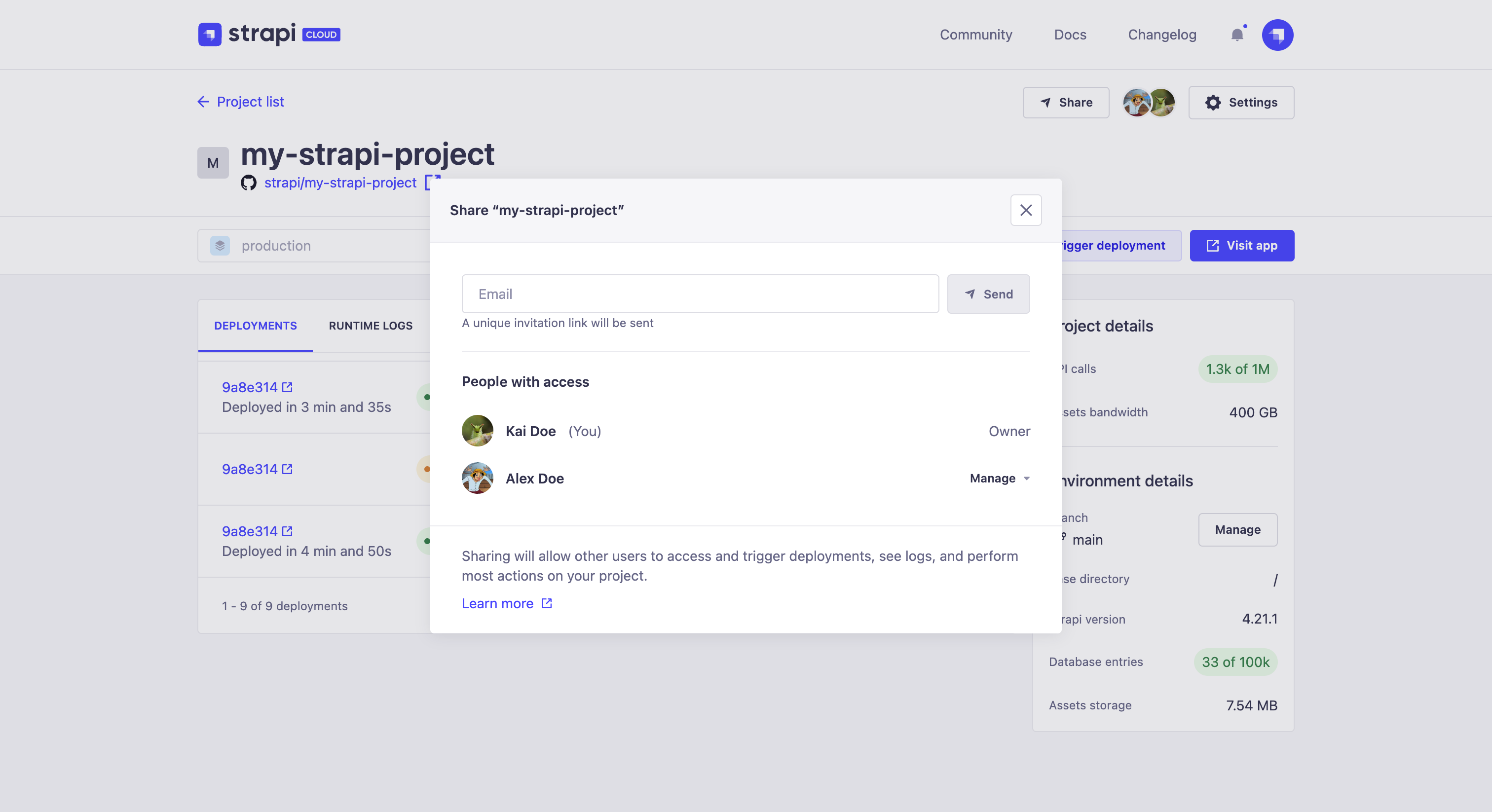
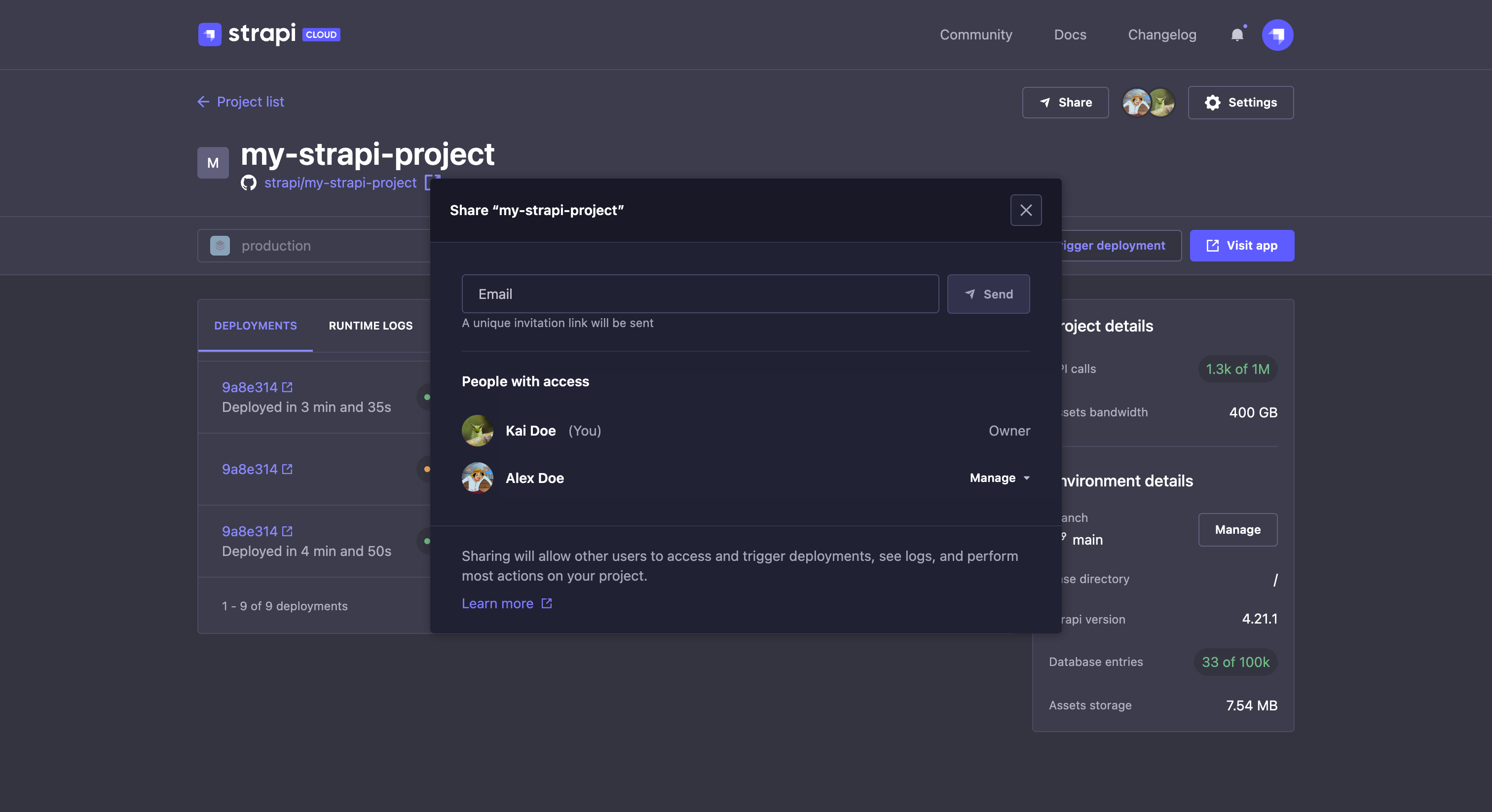
显示全名的维护者是指那些在收到邀请邮件后激活了账户的用户。然而,如果列表中显示的是电子邮件地址的维护者,这意味着他们尚未激活账户,因此无法访问项目仪表板。在这种情况下,应在电子邮件地址旁边标明状态以解释问题:
🌐 Maintainers whose full name is displayed are users who did activate their account following the invitation email. If however there are maintainers in the list whose email address is displayed, it means they haven't activated their accounts and can't access the project dashboard yet. In that case, a status should be indicated right next to the email address to explain the issue:
- 待处理:邀请邮件已发送,但维护者尚未采取行动。
- 已过期:电子邮件已在 72 小时前发送,邀请已过期。
对于已过期的状态,可以通过点击 管理 按钮,然后选择 重新发送邀请 来发送另一封邀请邮件。
🌐 For Expired statuses, it is possible to send another invitation email by clicking on the Manage button, then Resend invite.
撤销维护者权限
🌐 Revoking maintainers
撤销维护者对项目仪表板的访问权限:
🌐 To revoke a maintainer's access to the project dashboard:
- 点击项目仪表板标题中的 分享 按钮。
- 在“有权限的人”列表中,找到要撤销访问权限的维护者,然后点击管理按钮。
- 点击 撤销 按钮。
- 在确认对话框中,再次点击 撤销 按钮。
被撤销的维护者将完全无法访问项目仪表板。
🌐 The revoked maintainer will completely stop having access to the project dashboard.
被撤销项目访问权限的维护者不会收到任何电子邮件或通知。
🌐 Maintainers whose access to the project has been revoked do not receive any email or notification.